Chapter 25: Placing your first order
What you'll learn: how to buy your first products with confidence, how sales tax, discount codes and cashback fit in, and how to log the purchase so your records are tidy from day one.
Ready to order?
The Lead Check (Part 5) has done the hard work. Before you place the order, take one last look:
- Confirm the match. Check pack size, variation, edition and the retailer's product page against the Amazon listing. Multipacks and "similar but not the same" products are the usual traps (Chapter 19).
- Confirm you can sell it. Run a restriction check if you haven't already (Chapter 22).
- Confirm the numbers at today's prices. Open the retailer and Amazon pages, because prices move. Base your decision on the average sale price, not a short spike (Chapter 7).
- Decide the quantity. For a Test-buy, start with a few units: enough to learn the process and see how the product sells, without tying up too much cash.
Sales tax at checkout
ArbiSource shows the retailer's listed price, before sales tax. At checkout you'll usually pay sales tax unless you buy tax-exempt (Chapter 6):
- Paying tax? Look at the total with tax before you confirm. On a thin lead, a few percent can be the difference between your minimum ROI and a miss. Adding your rate when you check a lead, or keeping your minimum ROI a little higher, covers it.
- Buying tax-exempt? Make sure the retailer has your resale certificate on file, or that your Amazon Business tax exemption is active, before you check out. Check the receipt afterwards to confirm no tax was charged. Only use an exemption for stock you'll resell, never for personal items.
Discount codes and cashback
When you run a Store Scan, you can enter a Discount percentage for a retailer, such as a code you'll use (Chapter 12). Scan prices don't include cashback: the CASHBACK/COUPONS button lists the cashback portals available for each retailer, and many results show a cashback button where a site is available.
US sellers often stack savings: a discount code, a cashback portal, a discounted gift card and credit-card cash back on the same order. Each can lower what you really pay. Use them carefully:
- Only enter savings you'll actually get. If a code needs a minimum spend, excludes some brands or is first-order only, allow for it.
- Check the portal before you click through. Some cashback portals exclude certain categories, gift-card payments or orders that use a code. Read the terms for that retailer.
- Cashback can be delayed, declined or capped. Keep a note of what you're expecting so you can see when it arrives (Chapter 7).
- Keep it simple at first. For your first orders, one code and one portal are plenty. Learn the buying process before you add more layers.
How to place the order
- Buy in your business name, and use your business address for delivery. Match the name and address in Seller Central (Chapter 23).
- Pay by card or bank transfer, so your statement backs up the purchase.
- Choose delivery that gets the stock to you promptly. Include the shipping charge in what you paid.
- Save the order confirmation as a PDF as soon as it arrives, and photograph any store receipt the same day.
- Ask for an invoice where the retailer offers one. It's a useful extra record.
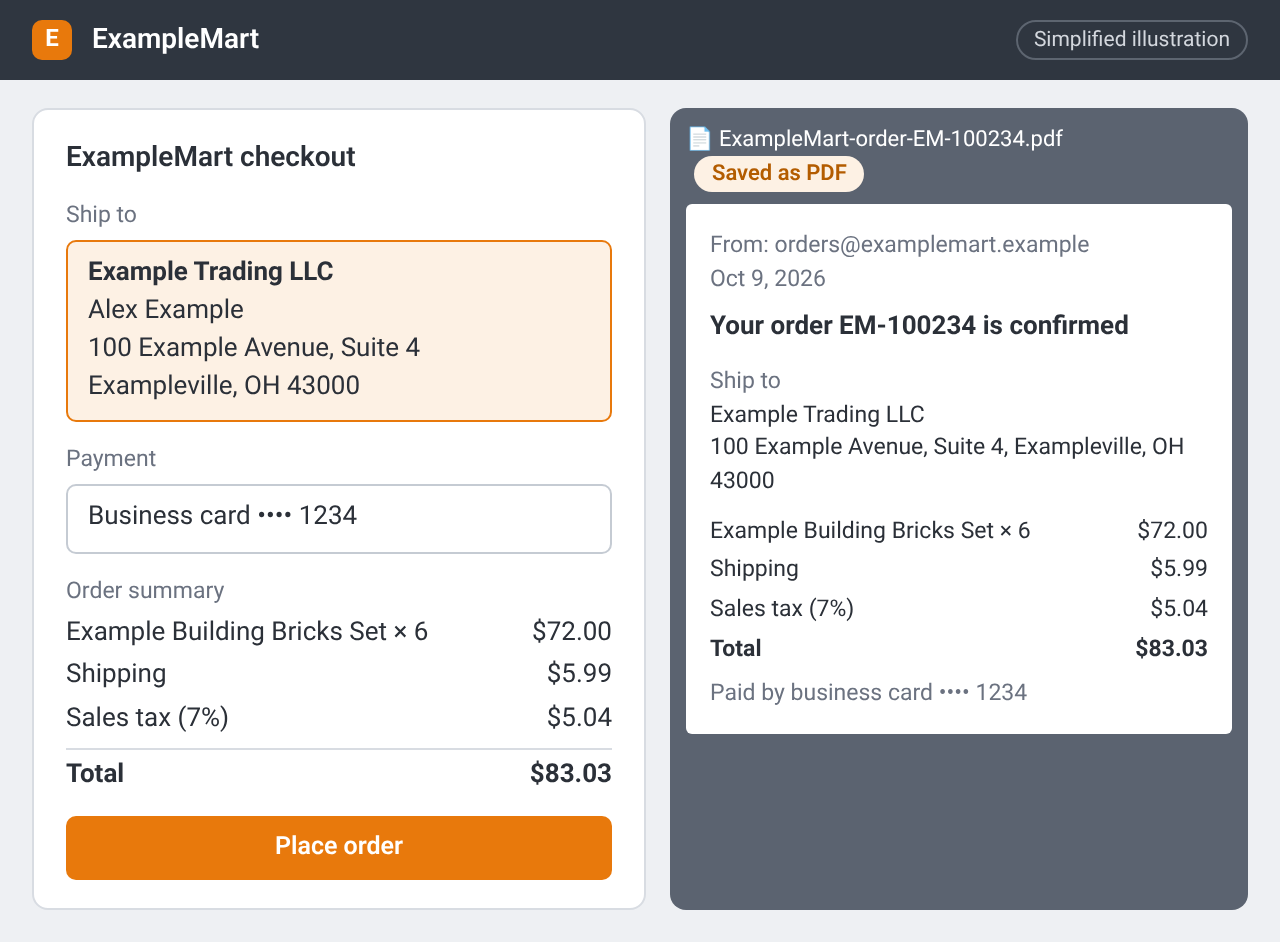
A checkout at ExampleMart (a made-up retailer) shipping to your business address, with the sales tax line shown, beside the order confirmation email saved as a PDF for your records. Simplified illustration – the real screen may look different.
Log it straight away
Add the purchase to your purchase log while the details are fresh (Chapter 23). The purchase log template on the Downloads page has these columns:
| Column | Example |
|---|---|
| Date | The order date |
| Retailer | The store or website |
| Product | Short name as on the listing |
| ASIN | The Amazon ASIN |
| Quantity | How many you bought |
| Unit price | Listed price per unit, after any discount code |
| Sales tax | Tax charged on the order ($0 if you bought tax-exempt) |
| Shipping | Delivery charge, if any |
| Total paid | Everything you paid for the order |
| Saved file | Folder and file name of the receipt or confirmation |
When the stock goes into a shipment, add the shipment ID to the same row. That link makes any later question about the product quick to answer.
In ArbiSource: keep the lead on your Sourcing List so prices stay refreshed, and export the list as a CSV when you want an offline copy (exports come with the Pro plan and above).
Checklist
- I've confirmed the match, the restriction status and today's numbers
- I've chosen a sensible first quantity (small for a Test-buy)
- I've checked the sales tax at checkout, or confirmed my exemption is active
- I've bought in my business name and paid by card or bank transfer
- I've saved the confirmation and logged the purchase