Chapter 27: Send to Amazon
What you'll learn: how to build your first inbound workflow, pack and label the boxes, choose a carrier, and follow the stock until Amazon has checked it in.
Before you start
- Each product must already sit in your inventory as Fulfilled by Amazon. If it still says Fulfilled by Merchant, convert it (or add it as FBA) before it will appear in the workflow.
- Units labelled and prepped (Chapter 26).
- Boxes, scales and a tape measure within reach.
- Your purchase log open, so you can add the shipment ID when you finish (Chapter 25).
Step through Send to Amazon
Open Seller Central, go to the Shipping Queue, then start Send to Amazon.
- Choose the products and quantities you're sending.
- Confirm prep and labelling. The workflow shows any prep Amazon expects for each product. You've already done this yourself (or your prep centre has).
- Pack the boxes. Say how the units are packed:
- Individual: mixed products in a box, each unit labelled.
- Case-packed: one SKU per box, equal quantities in every box of that product, packed by the manufacturer. Cover barcodes on the outer case so only the units inside are scanned.
- Enter each box's weight and dimensions. Be accurate. Wrong figures can mean extra fees or a refused delivery.
- Provide box content information where you can. It helps Amazon check stock in faster and can avoid a manual processing fee. Each box must contain inventory from only one shipment ID.
- Choose how to send it:
- Amazon-partnered carrier (small parcel): Amazon shows the estimated cost before you confirm and charges it to your seller account. Print both the Amazon box labels and the carrier labels. Partnered small-parcel shipments allow up to 200 boxes per shipment.
- Your own carrier: book the collection yourself, then enter the tracking numbers in Seller Central.
Check the destination shown in the workflow. Amazon can split a shipment across more than one fulfilment centre; if it does, pack and label each box for the shipment it belongs to.
- Print the Amazon box ID labels and stick one on each box where it can be scanned. Don't cover it with tape or another label.
- Confirm shipping and arrange collection or drop-off.
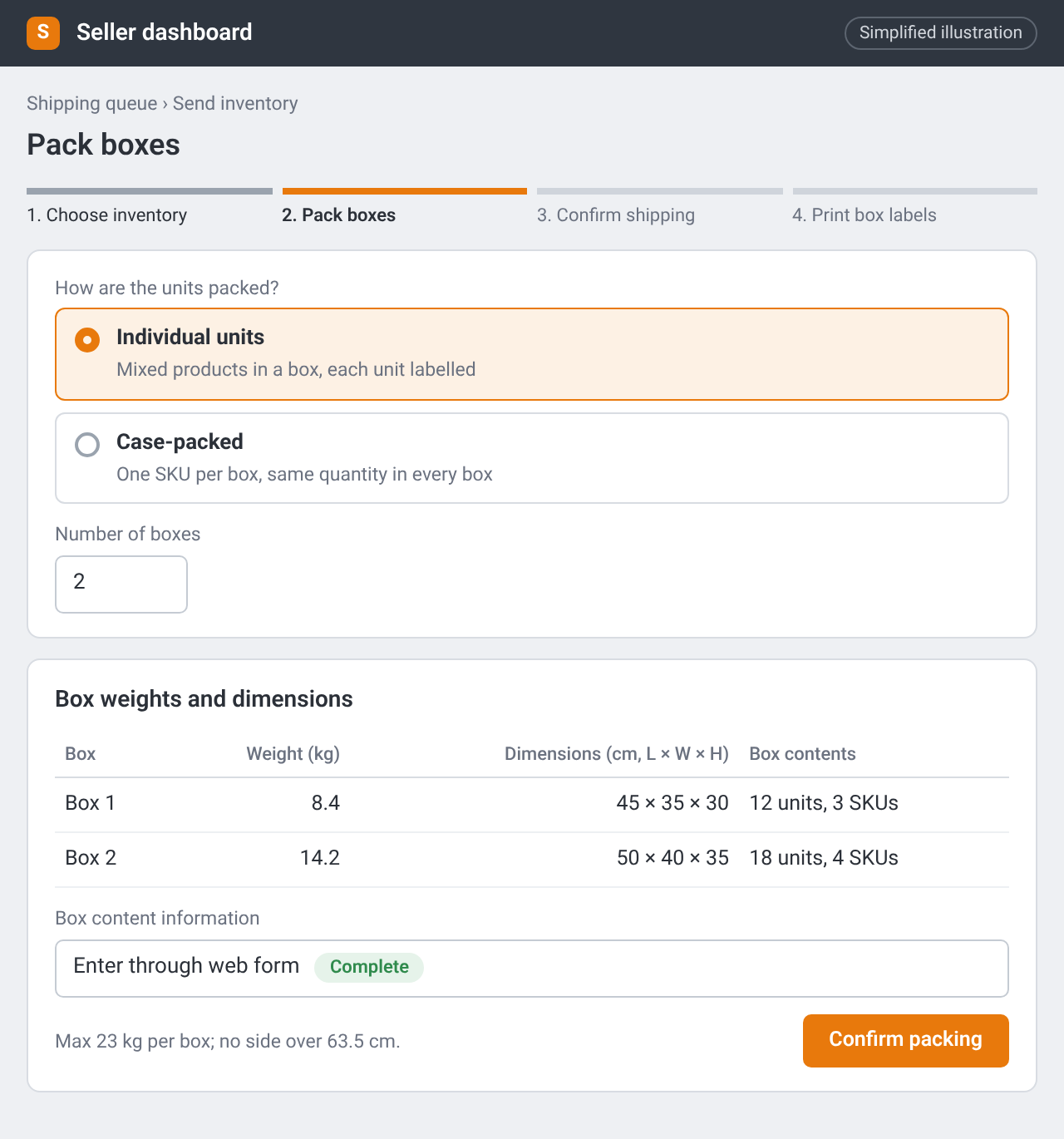
Send to Amazon packing step: individual units or case-packed, each box’s weight (kg) and dimensions (cm), and box contents entered through the web form. Simplified illustration – the real screen may look different.
"Send to Amazon (UK)": creating a small-parcel shipment, entering box contents, choosing a partnered carrier and printing labels.
Follow it in the Shipping Queue
Watch progress in the Shipping Queue. Common statuses:
| Status | What it means |
|---|---|
| Working | You're still building the shipment |
| Ready to ship / Shipped | Labels are done and the carrier has it (or you've marked it shipped) |
| In transit | On the way to the fulfilment centre |
| Delivered | Arrived at Amazon |
| Checked in | Amazon has started receiving it |
| Receiving | Units are being added to your available inventory |
| Closed | Receiving is finished |
Products usually become available for sale as they're received, not only when the whole shipment closes. Compare what you sent with what Amazon received. If units are missing or damaged, open a case for reimbursement with your shipment ID and packing records.
A simple first run
- Prep and label every unit the day the stock arrives (Chapter 26).
- Create one small Send to Amazon workflow: a few SKUs, one or two boxes.
- Weigh and measure each box yourself.
- Use a partnered carrier for the first run so labels and tracking stay inside Seller Central.
- When it shows Receiving or Closed, update your purchase log with the shipment ID (Chapter 25).
- Keep the workflow open only as long as you need it; finish or cancel anything you've abandoned so your queue stays tidy.
Read Amazon's guides: Shipping and routing requirements and Product packaging requirements.
Checklist
- Every product is listed as FBA before I start Send to Amazon
- I've entered accurate box weights, dimensions and contents
- Each box has its Amazon box ID label (and carrier label if required)
- Boxes meet the 23 kg and 63.5 cm rules, with Team Lift labels if over 15 kg
- I know where to track the shipment and how to compare what was received