Chapter 3: Settings that make the numbers right
Most of these are on the Account page (at the bottom of the sidebar), which is split into tabs: Settings (your VAT Status and Additional Costs), Deal Score Settings and Global Filters. Custom buttons are added from the Results page.


1. Your VAT setting
On the Settings tab, set VAT Status. There are two options. Choose the one that matches your business:
- Not VAT Registered. Most beginners start here. ArbiSource includes the VAT Amazon charges on its fees as a cost, because you can't reclaim it.
- VAT registered. ArbiSource removes the VAT from Amazon's fees and shows a VAT Due figure on each result (VAT collected on the sale minus VAT on the cost of goods). It assumes the standard rate of VAT. See Chapter 26.
This setting changes the profit noticeably, so keep it up to date (Chapter 23.2).
2. Additional costs (optional: come back to these later)
On the Settings tab, under Additional Costs, you can add costs that Amazon's fees don't cover: a Fixed Cost per unit (such as prep supplies or a prep centre's charge), an average Inbound Shipping cost per kg, and a Storage Time (how many months you expect to hold stock).
You don't need to fill these in on day one. They're entirely optional, and a wrong guess can make good products look unprofitable or hide them from your results altogether. Add them once you know your real costs; until then, keep prep and shipping in mind when you check a lead.
once you add a Fixed Cost, it's taken off before your minimum-profit filter is applied. A £1 Fixed Cost plus a £3 minimum profit means a product needs to make about £4 before that cost to appear.
3. Deal scores
Every result gets a deal score out of 10, so you can spot the strongest leads at a glance. You control how it's worked out on the Deal Score Settings tab:
- Under Points Allocation, you share 100 points across five factors: profit, ROI, BSR (sales rank), match confidence and number of sellers. Give more points to whatever matters most to you.
- Under Score Thresholds, you set what counts as bad, okay, good and great for each factor.
You must share out all 100 points before you can save. New settings apply to future scans; results from scans you've already run keep their old scores.
On day one, leave the defaults alone. Adjust them once you know what you like.
4. Your starter filters
Set your everyday filters on Account → Global Filters. A result must pass every filter at once, so start broad. Good starting points: low minimum profit and ROI with no maximum; average profit ticked, slightly below your normal minimum; match confidence 70–100%; BSR fully open; Total Sellers minimum 2 or 3; leave the default exclusions on. Chapter 7 explains each filter and why, and Chapter 10 fixes few or no results. Save the set with Save Filter Set.

5. Custom buttons
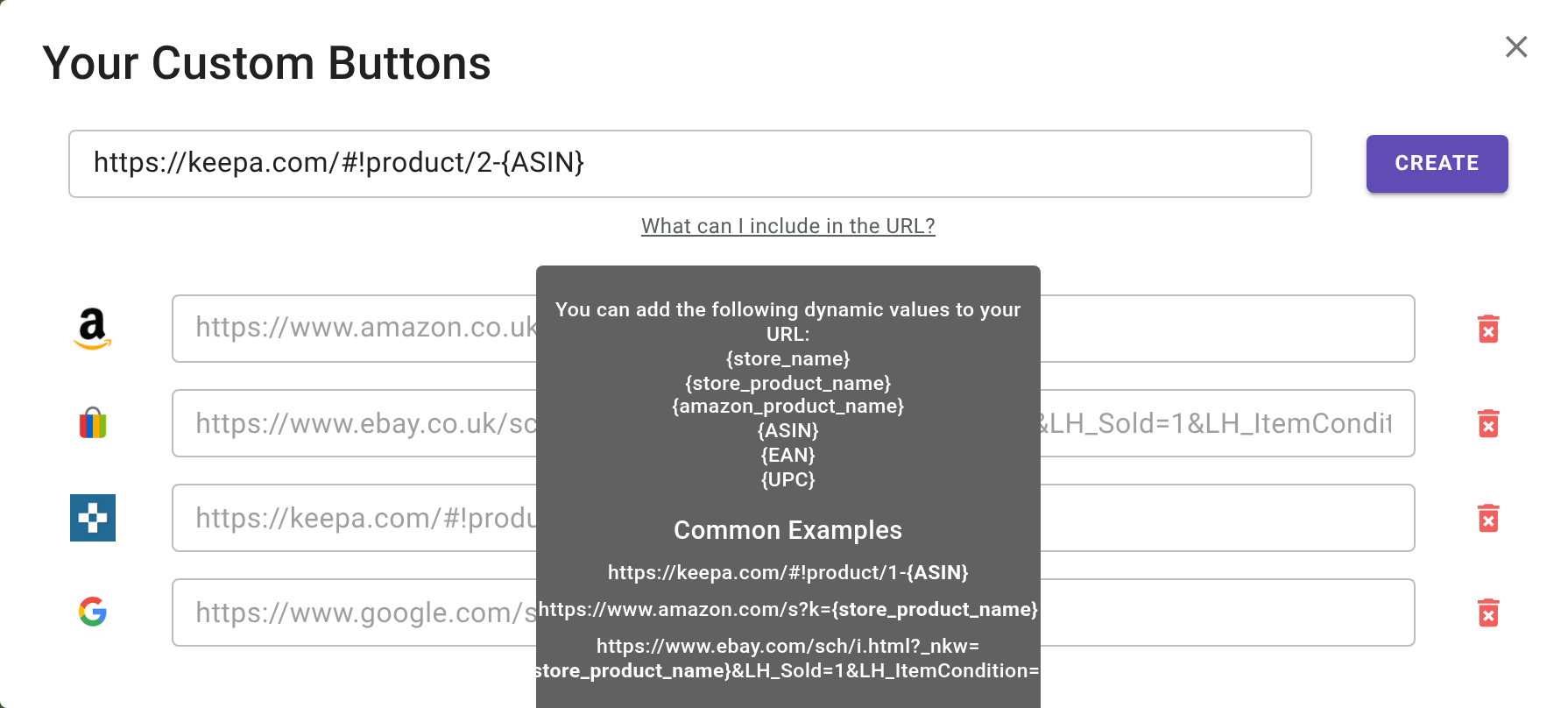
Custom buttons put one-click shortcuts on every result, such as opening the product in Keepa, checking eBay sold listings or visiting a cashback site. Add up to seven with the + icon on any result panel.
Put a dynamic value in the link and ArbiSource fills in each product's details. For example, a Keepa button for Amazon.co.uk:
https://keepa.com/#!product/2-{ASIN}
Here {ASIN} is replaced with each product's ASIN (Amazon's product code), and 2 tells Keepa to open the Amazon.co.uk listing. Type the dynamic values exactly as shown, with single curly brackets: {ASIN}, {EAN}, {UPC}, {store_name}, {store_product_name} and {amazon_product_name}. For example, the Amazon product name is handy for an eBay sold-listings search, and the EAN for searching by barcode.